3 Android Auto Automations to Stop Wasting Time in Your Driveway
 Jun, 19 2026
There is nothing quite as frustrating as sitting idly in your car, engine running, staring at the house you just left. You know you forgot something. Did you lock the front door? Are the lights off? Is the smart garage door actually closed? For years, this was my daily ritual: a few minutes of anxiety and wasted fuel while I manually checked things or rushed back inside. But recently, I stopped wasting that time entirely by tweaking three specific automations linked to Android Auto.
The secret isn't buying expensive new hardware. It’s about connecting the dots between your car’s interface and your home ecosystem. As highlighted in a recent guide on daily.dev, these simple tweaks turn a stressful departure into a seamless exit. Here’s how I set it up, why it works, and the one trick most people miss.
The "Leaving Home" Automation Fix
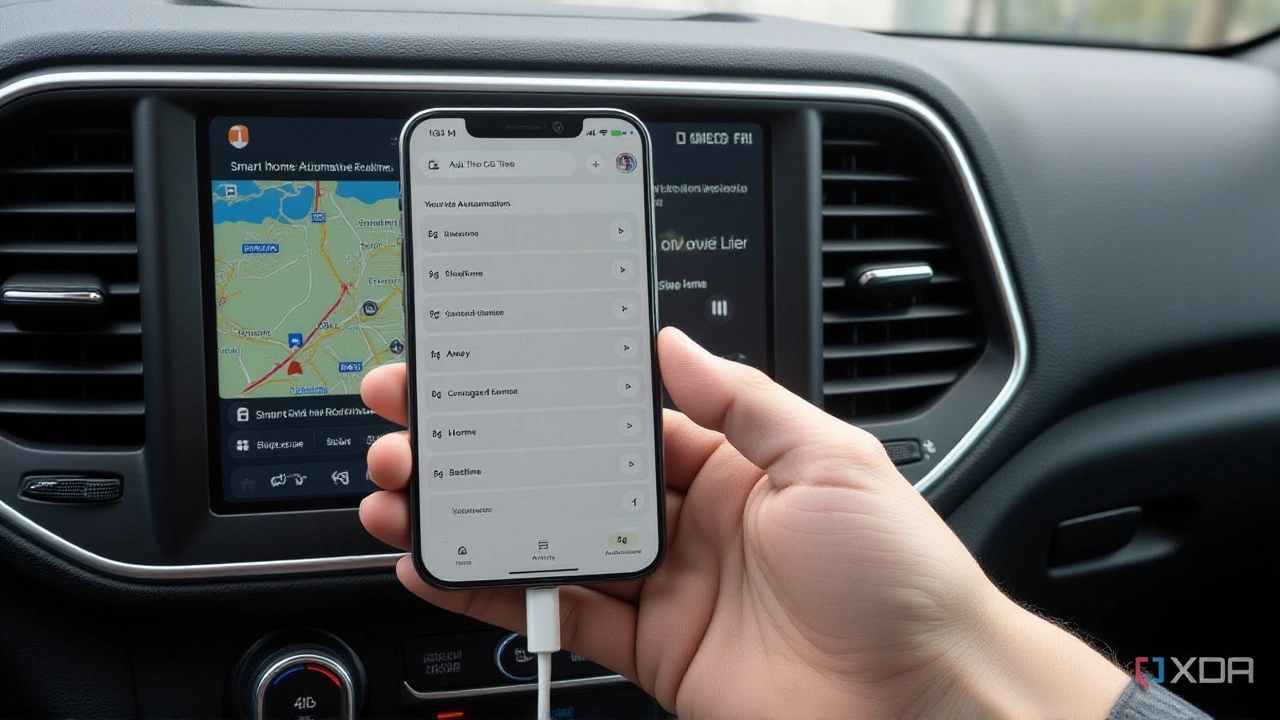
The first and most impactful change involves editing a default routine. Most users with a Google Home setup have access to stock automations, including one called "Leaving Home." Out of the box, it’s often underwhelming—maybe it just turns off a thermostat. That’s not enough.
I edited this stock automation to include every light in my house. When my phone detects I’ve left the geofence around my home, the system instantly switches off all smart bulbs. No more wondering if the kitchen overheads are still burning. The beauty here is that it happens automatically; I don’t have to think about it. It triggers based on location, not time, so whether I leave at 7:00 AM for work or 6:00 PM for dinner, the lights go out the moment I drive away.
Voice Control for the Garage Door
Next comes the garage door. This is the big one. If you’re like me, you pull out, look in the rearview mirror, and panic because the door looks slightly ajar. Or worse, you realize halfway down the street that you never hit the close button.
Instead of relying on a separate remote or an app on my phone (which requires unlocking and navigating), I use a direct voice command through Android Auto. By saying "Hey Google, close the garage," the command processes instantly through the car’s speakers. It’s tactile, immediate, and doesn’t require taking my eyes off the road for long. According to the daily.dev article, this voice command integration remains one of the most reliable features, even as other third-party integrations come and go.
The Hidden Shortcut Trick
Here’s the thing most guides miss: you don’t always want to talk. Sometimes you just want to tap. This brings us to the third automation, which relies on a feature detailed by Android Police and demonstrated in various tech tutorials.
You can create custom shortcuts on the Android Auto launcher screen. These aren’t just apps; they can be "Assistant Actions." This means you can add a tile to your car’s dashboard that, when tapped, executes a complex command without you speaking a word. I set up a shortcut labeled "Home Secure." One tap, and it runs a routine that locks doors, arms the alarm, and confirms the garage is closed. It’s faster than voice commands and less intrusive than pulling out your phone.
To do this, you go to the Customize page in Android Auto settings, tap "Add shortcut to launcher," and select "Assistant action." Then, you type the exact command you’d speak, such as "Turn off all lights." It essentially creates a button for your voice prompts.
Why This Matters for Daily Commutes
This might seem like minor convenience, but the cumulative effect is significant. We spend hours in our cars annually. Reducing cognitive load during those transitions makes driving safer and less stressful. A related piece on How-To Geek noted similar benefits, emphasizing that setting up these routines in the Google Home app takes only a few minutes but saves seconds every single day.
Furthermore, as vehicles become more integrated with digital ecosystems, these small automations pave the way for smarter living. You’re not just controlling devices; you’re creating a workflow that anticipates your needs. The shift from manual checking to automated assurance is subtle but profound.

Setting Up Your Own Routine
If you want to replicate this, start with the Google Home app. Navigate to the "Automations" tab. Look for the "Leaving Home" trigger and edit the actions. Add your lights, fans, and any other devices you want to ensure are off. Then, move to your Android Auto settings on your phone. Go to "Customize" and add the Assistant Action shortcuts for your most frequent commands.
It’s worth noting that not all smart home brands integrate perfectly with Google Assistant. While major players like Philips Hue and Lutron work seamlessly, some lesser-known garage door openers may require additional hubs or bridges. Check compatibility before you buy. Also, ensure your car’s Android Auto version is updated, as older versions may lack the shortcut customization options.
Frequently Asked Questions
Do I need a specific type of garage door opener?
You need a smart garage door controller that is compatible with Google Assistant. Popular options include the MyQ hub, Govee Smart Garage Door Opener, or Chamberlain MyQ. Standard openers won't work unless you add a smart retrofit kit that connects to Wi-Fi and integrates with the Google Home ecosystem.
Can I use these automations with Apple CarPlay?
The specific "Assistant Action" shortcuts described here are unique to Android Auto and Google Assistant. However, Apple CarPlay users can achieve similar results using Siri Shortcuts. You can create a shortcut in the iOS Shortcuts app and add it to your CarPlay home screen, allowing you to tap a button to run a "Leave Home" scene in Apple HomeKit.
What if my internet goes out at home?
These automations rely on cloud connectivity. If your home Wi-Fi or internet connection drops, the commands sent from your car via cellular data may fail to reach your devices. In such cases, you would need to use physical remotes or manual switches. It's a good idea to keep a traditional garage door remote in the glovebox as a backup.
Is there a delay in the automation triggering?
There is usually a slight delay, typically between 1 to 5 seconds, depending on your network speed and device responsiveness. The geofencing trigger for "Leaving Home" might take a few moments after you've physically driven away to activate. Voice commands and shortcut taps are generally faster, processing within a second or two.
How do I edit the "Leaving Home" automation?
Open the Google Home app on your smartphone. Tap on "Automate" or "Routines" at the bottom. Find the pre-set "Leaving Home" routine. Tap the pencil icon to edit. From there, you can add actions like "Turn off lights" or "Set thermostat to Eco mode." Save changes to apply them immediately.